Creating a New Job
Roopairs allows you to create new jobs for current or new clients. Once you have entered in the details of your Job (service type and estimated service charges/parts) you are then able to use Roopairs to electronically send the job to your clients via email or text. Follow these steps to create your first job.
Create a New Job
From the Dashboard select + New Job
- Or, using the sidebar on the left, select
Jobsand then in the top right click+ New Job
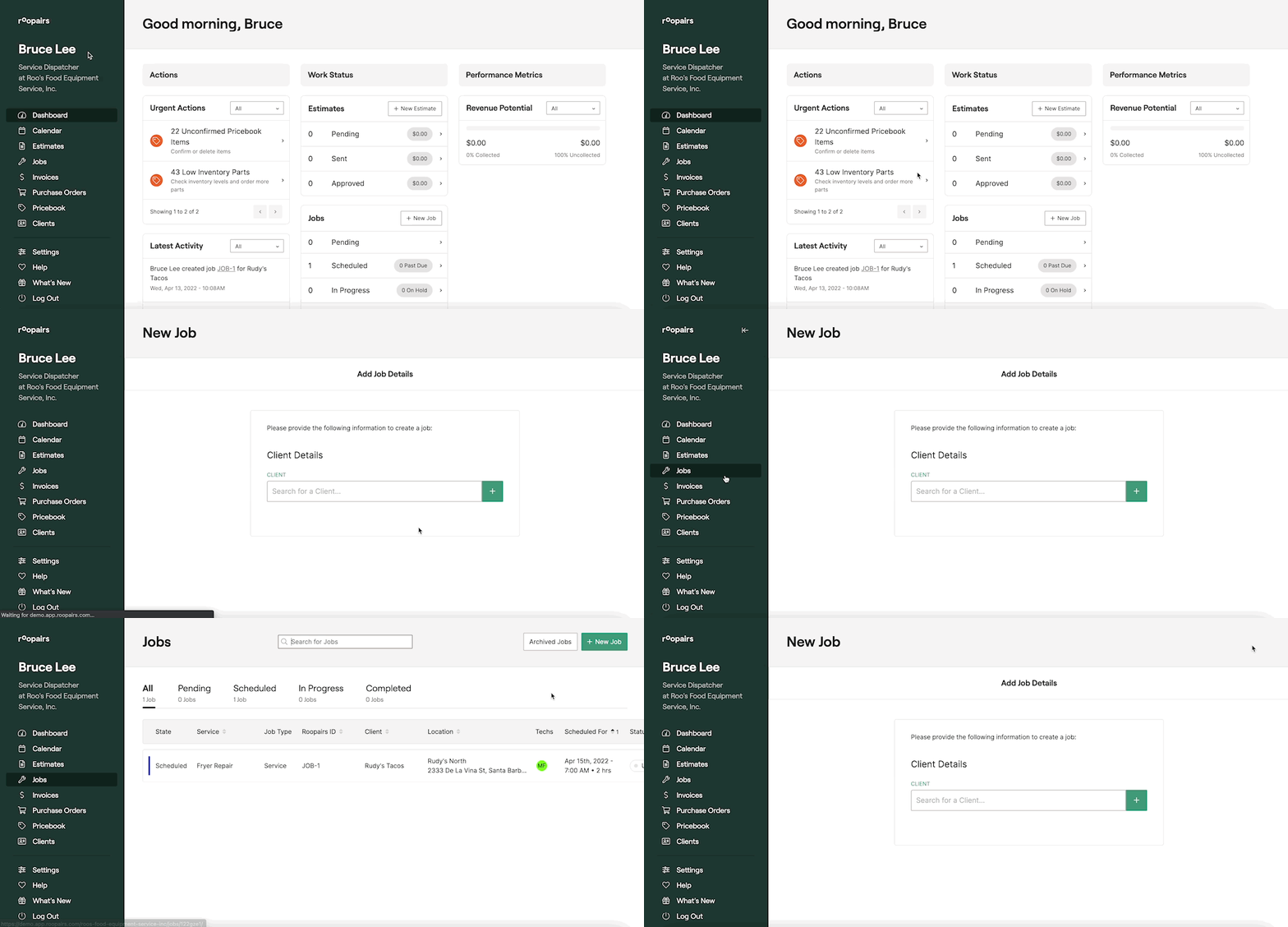
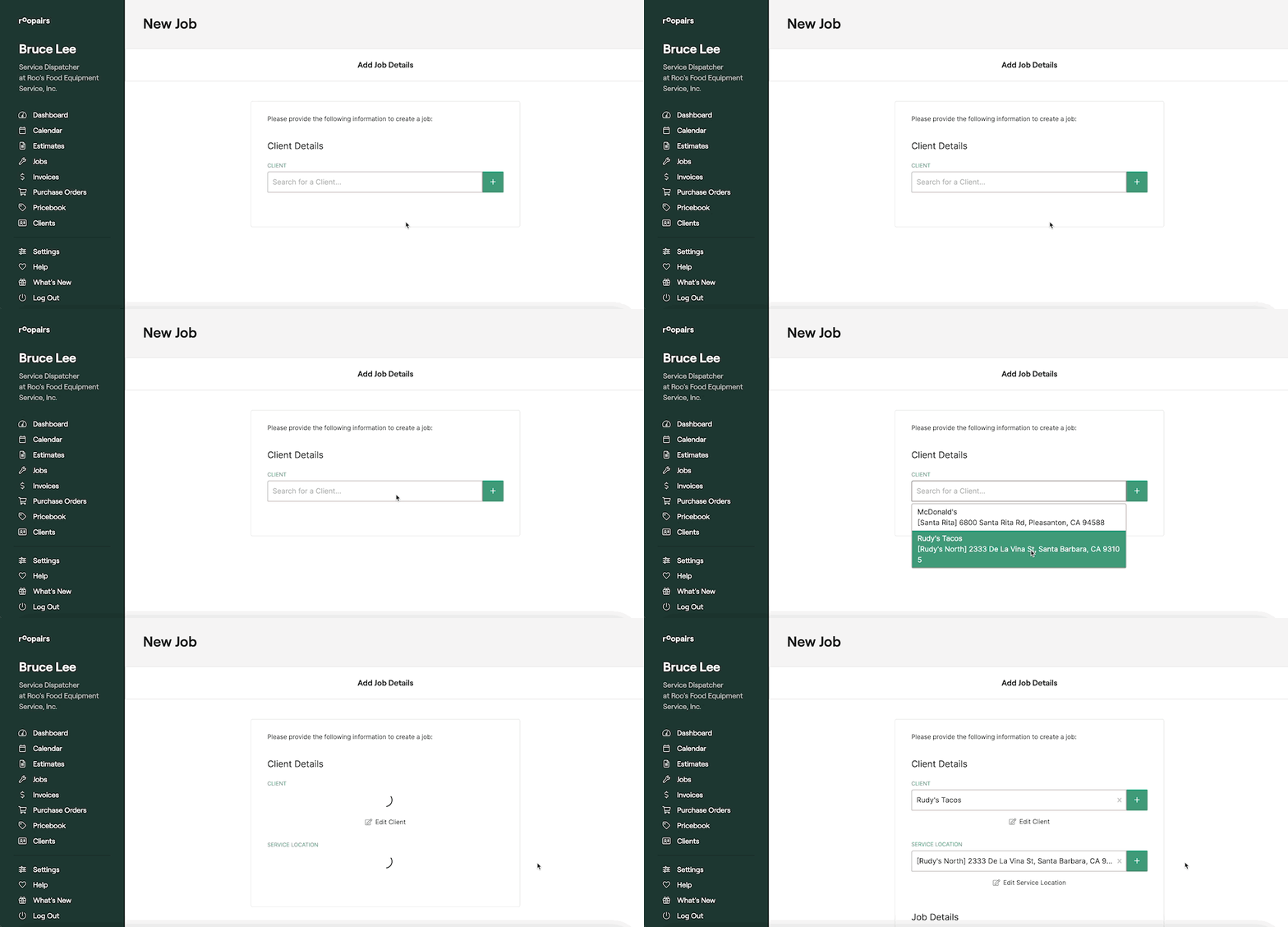
Select your Client
You can select the Client this Job is for from the dropdown by either clicking into the dropdown and choosing from the list or by typing in the name of the client the Job is for.
- If this Job is for a new Client that is not already in your system you can click the green
+button to create your new Client with the appropriate client details. Learn how to create a new Client HERE.
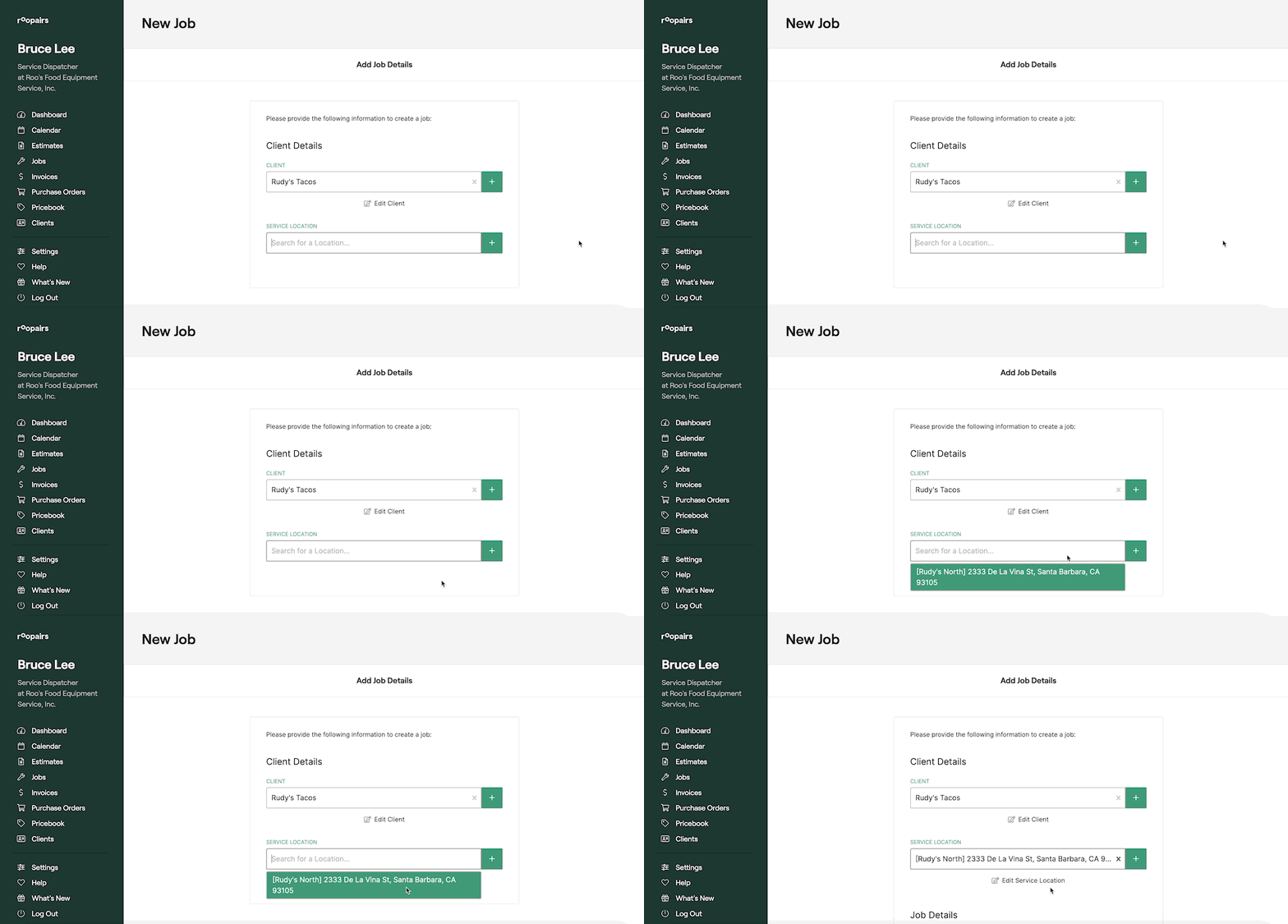
Select your Service location
You can select the Service Location this Job is for from the dropdown by either clicking into the dropdown and choosing from the list or by typing in the name/address of the Service Location the Job is for.
- If this Job is for a new Service Location that is not already in your system you can click the green
+button to create a new Service Location with the appropriate details. Learn how to create a new Service Location HERE.
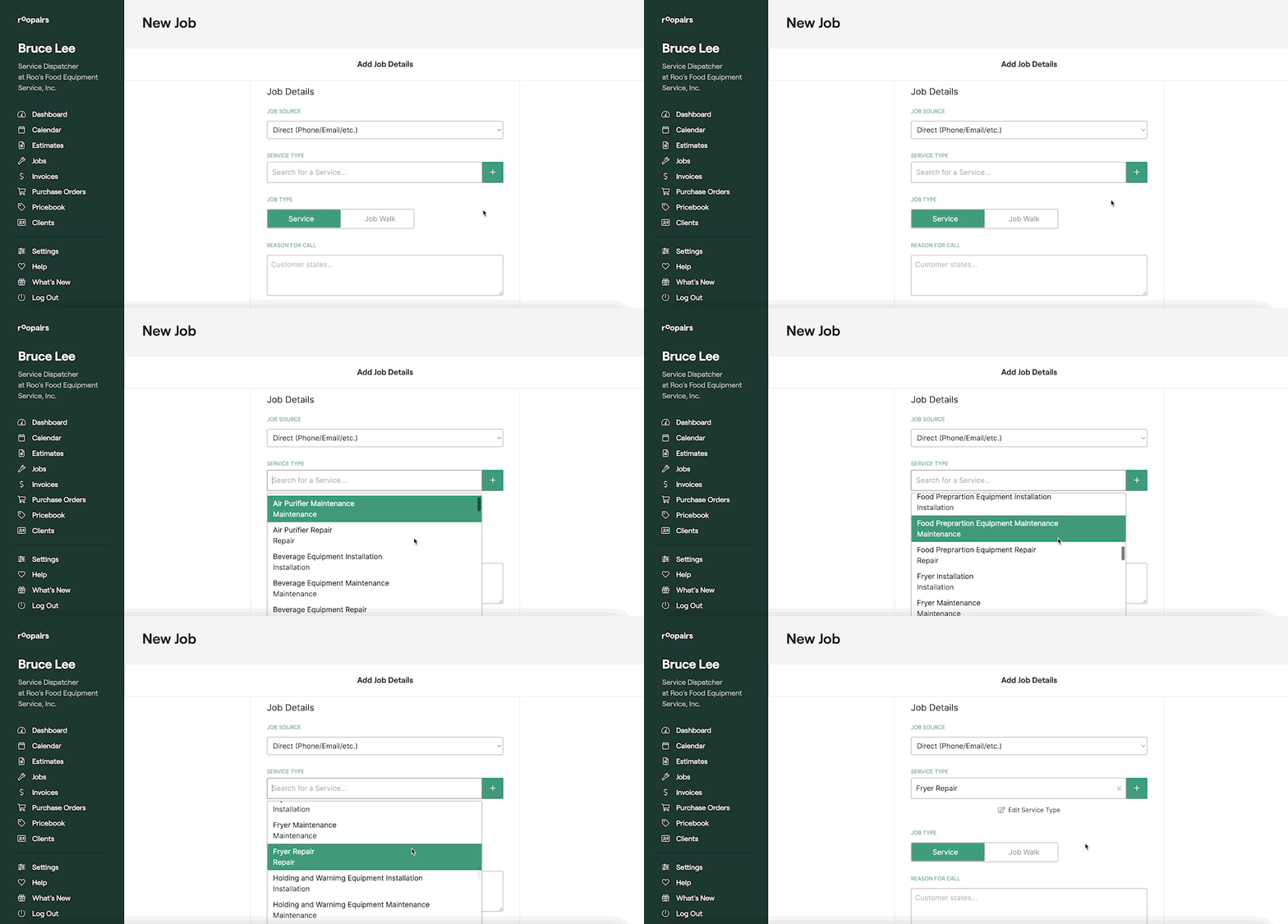
Select your Service Type
You can select the Service Type for this Job from the dropdown by either clicking into the dropdown and choosing from the list or by typing in the name of the Service Type for this Job.
- If this Job will be for a new Service Type that is not already in your system you can click the green
+button to create a new Service Type with the appropriate details. Learn how to create a new Service Type HERE.
Select your Job Type
Once you have selected your service type, select if this is an actual Service or a Job Walk that you will be performing.
- Select Service if you will actually be performing a job. If you still need to assess the job then you can select Job Walk.
- Be sure to enter in a reason for the job in order to finalize it
Select your Equipment for this Job
If this is a job that requires equipment then check the box Is Equipment Involved In This Job?
- If you already have equipment logged for this client you can select it from the dropdown
- If you need to add new Equipment click the green
+button - Select your Equipment Category.
- Enter in the details of the equipment such as the Display Name, Serial Number, Model Number, etc.
- If this equipment is under warranty then you can check the box at the bottom
Equipment is Under Warrantyand enter in the details of the warranty - After adding your equipment, select from the dropdown to indicate who called in the service and who the tech should be asking for. If you do not see the contact listed in the dropdown you can add the designated person by clicking the green
+button. - Lastly enter in the Estimate Job Date and Time of Arrival as well as your Estimated Job Duration and which Technician(s) you are assigning this job to.
- You can now create the job by clicking the green
Createbutton at the bottom. - If you need to gather more details before creating the job you can always save it as a draft and return to it by clicking the
Save Draftbutton.