Creating a New Service Location
Creating a New Service Location
There may be times where you get a new Estimate or Job for a client that is for a Service Location that does not currently exist in your system. Luckily, Roopairs makes it easy to add new Service Locations while you are creating new Estimates and Jobs. Follow these steps to learn how!
Adding a New Service Location
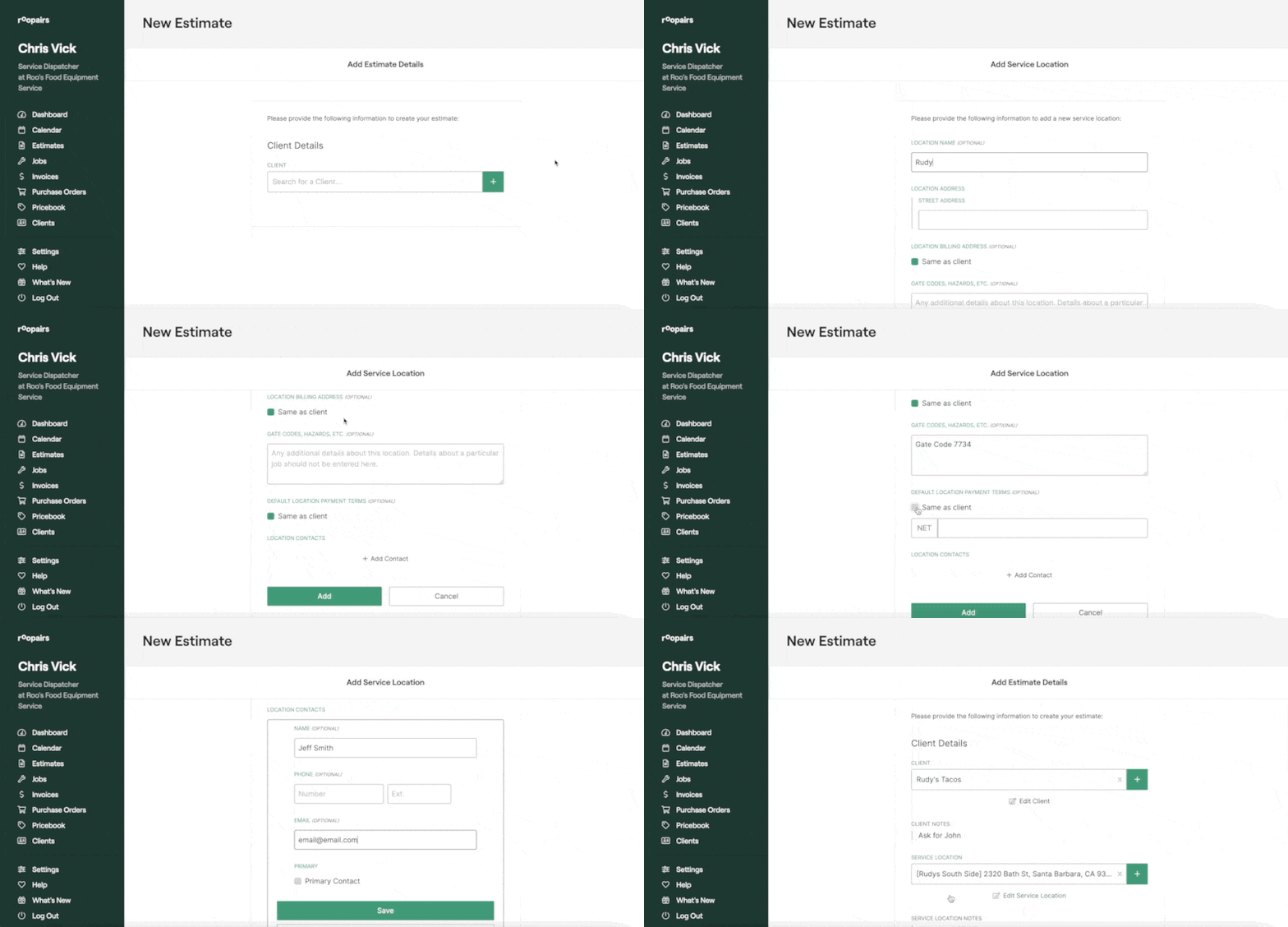
If you are in the middle of creating a Job or Estimate, once you select your Client you are able to add a New Service location by clicking the green + button next to the dropdown.
- Enter in a Location Name if applicable.
- Enter in this new locations Street Address.
- If the billing address is the same as the client then simply check the box
Same as Client. If it differs, uncheck the box and enter in the billing address details. - If there are any notes you need regarding this Service Location such as gate codes or hazards, you can enter them into the Gate Codes, Hazards, Etc section.
- Click the
+ Add Contactbutton to add a designated Contact for this Service Location. If this will be the primary contact for this location then simply check the box at the bottom labeled Primary Contact and click the greenSavebutton. - Verify all details are accurate and then click the green
Addbutton at the bottom to add this Service Location to your Client for this Estimate.
Was this helpful?