Creating a New Client
Creating a New Client
Whenever you get business from a new Client that is not already in Roopairs you have the ability to add that new Client and all of their details directly in the system. Follow these steps to learn how to create a new Client directly in Roopairs!
Adding a New Client
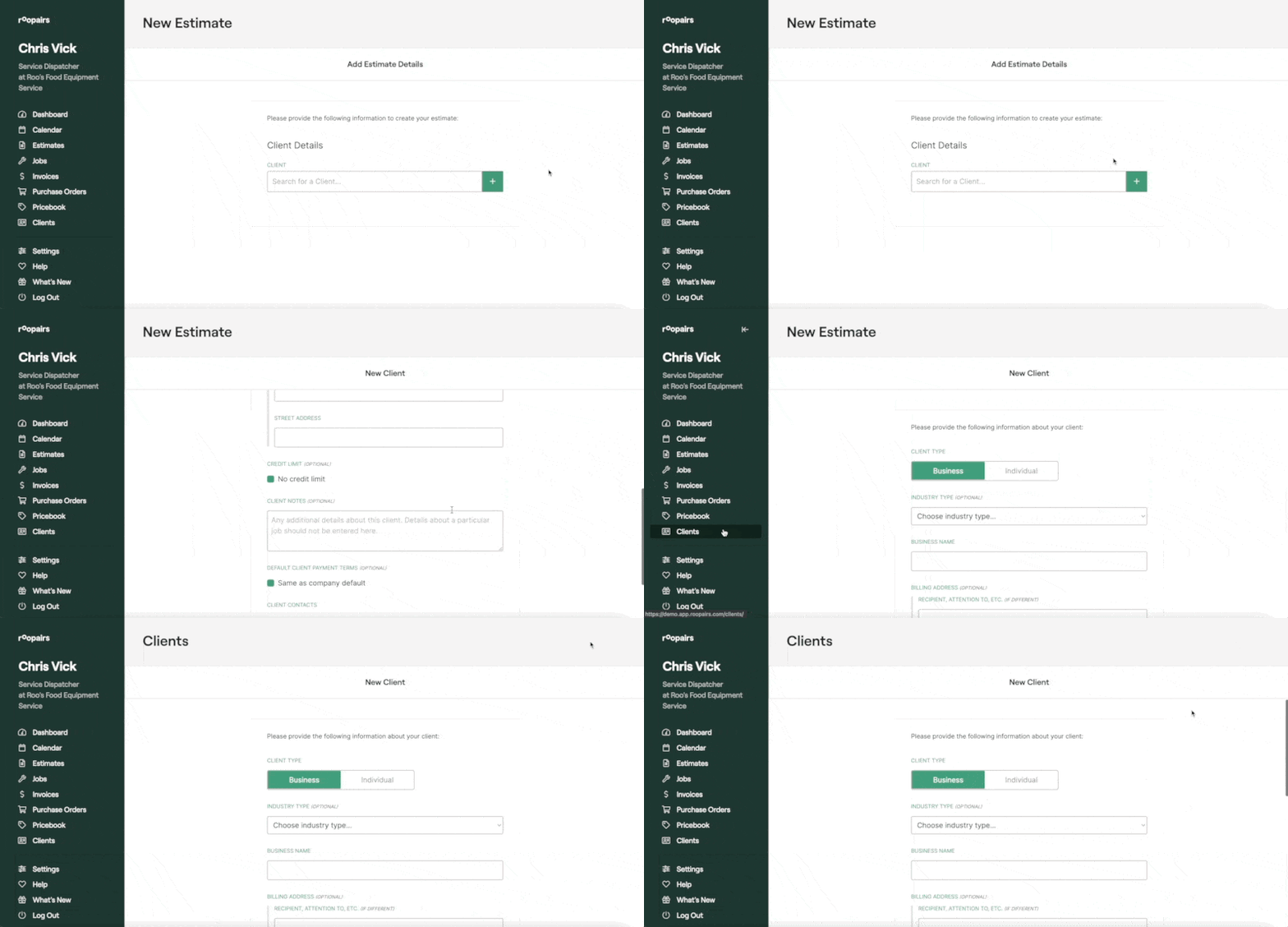
If you are in the middle of creating a Job or Estimate you can click the green + button next to the dropdown to add a new client.
- Or, using the sidebar on the left, select Clients and then in the top right click
+ New Client.
Enter Client Details
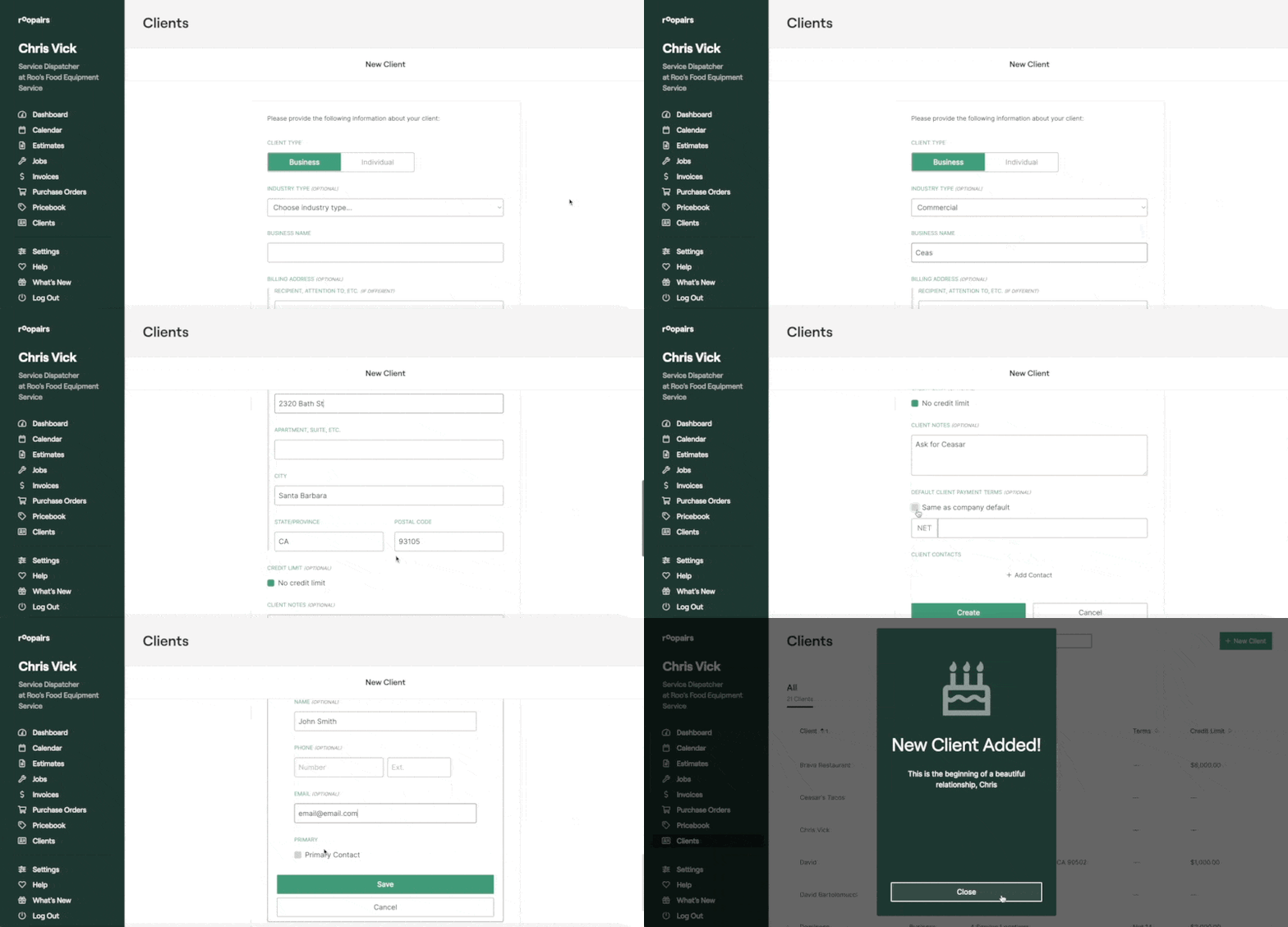
You can now populate all the details of this new Client so you have it on record moving forward in Roopairs.
- Select whether this Client is a
Businessor anIndividual. - Select the Industry Type this client belongs to via the dropdown.
- Enter in the Business Name for this Client.
- Enter in the Billing Address for this Client.
- If there will be no Credit Limit for this client then simply check the box
No Credit Limit. If there is a Credit Limit, uncheck the box and enter in the amount. - If you would like to leave any notes you can do so in the Client Notes section at the bottom.
- Click
+ Add Contactat the bottom to add a Contact and their info for this Client. - If this contact is the primary contact for this Client then check the box at the bottom for
Primary Contact. - Verify all your details are correct and if so, click the green
Createbutton at the bottom to successfully add this new client to Roopairs!
Was this helpful?