Creating a New Invoice
Roopairs allows you to create New Invoices for current or new Clients. Once you have entered in the details of your Invoice (Service Type and Service Charges/Parts) you are then able to use Roopairs to electronically send the Invoice to your Clients via email or text. Follow these steps to create your first Invoice.
Create a New Invoice
From the Dashboard select + New Invoice
- Or, using the sidebar on the left, select
Invoicesand then in the top right click+ New Invoice
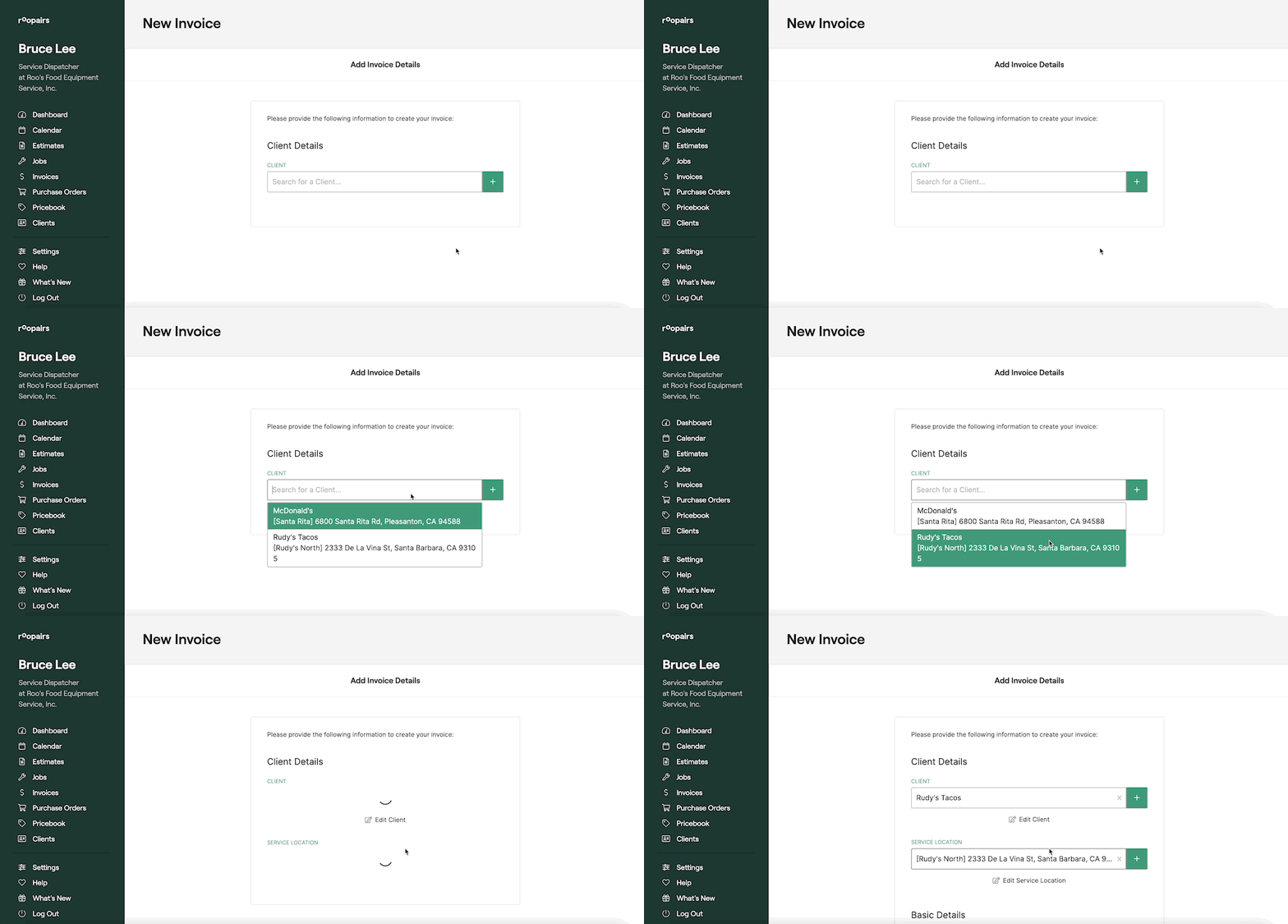
Select your Client
You can select the Client this Invoice is for from the dropdown by either clicking into the dropdown and choosing from the list or by typing in the name of the Client the Invoice is for.
- If this Invoice is for a new Client that is not already in your system you can click the green
+button to create your New Client with the appropriate Client Details. Learn how to create a new Client HERE.
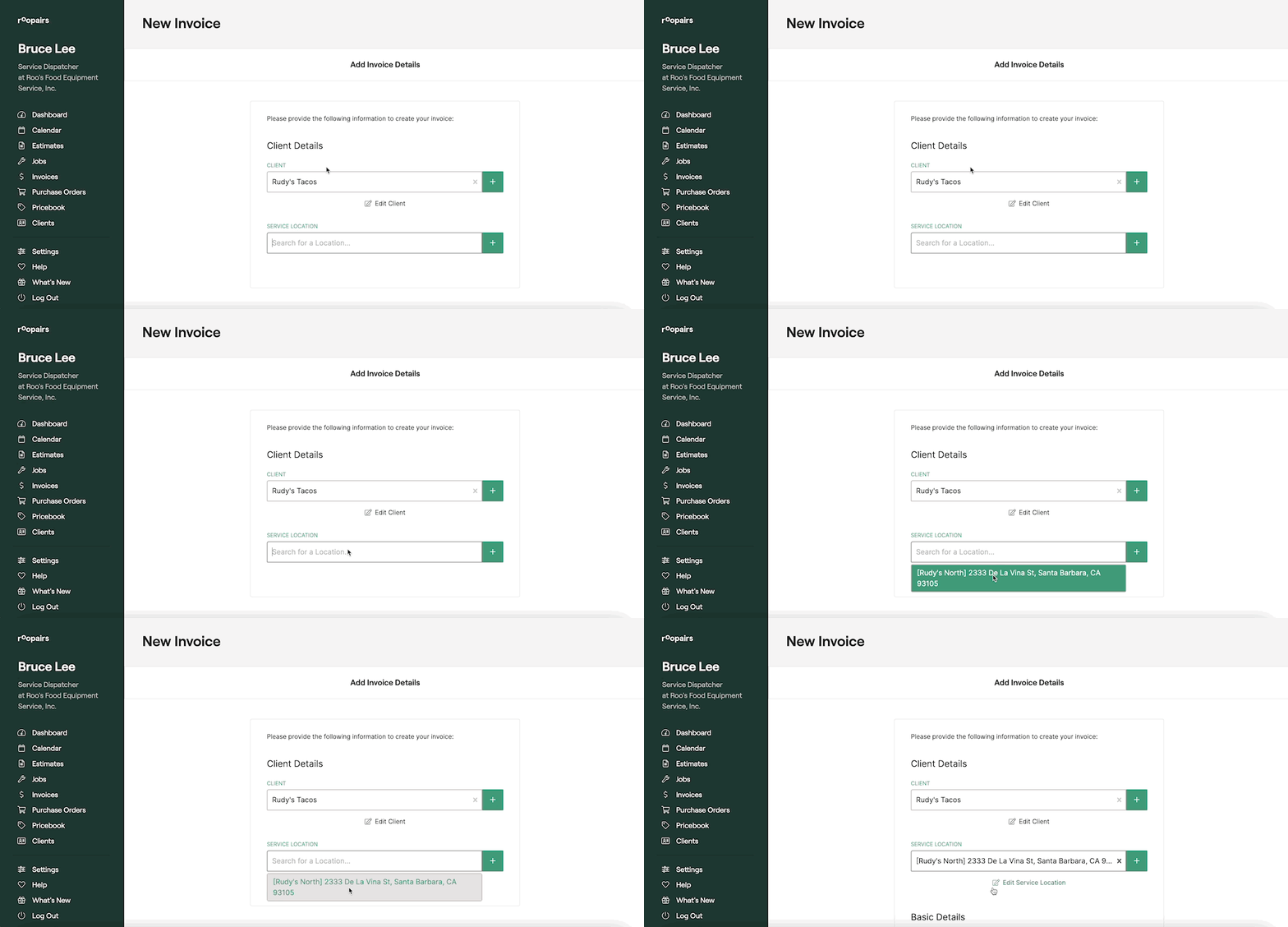
Select your Service location
You can select the Service Location this Invoice is for from the dropdown by either clicking into the dropdown and choosing from the list or by typing in the name/address of the Service Location the Invoice is for.
- If this Invoice is for a new Service Location that is not already in your system you can click the green
+button to create a new service location with the appropriate details. Learn how to create a new Service Location HERE.
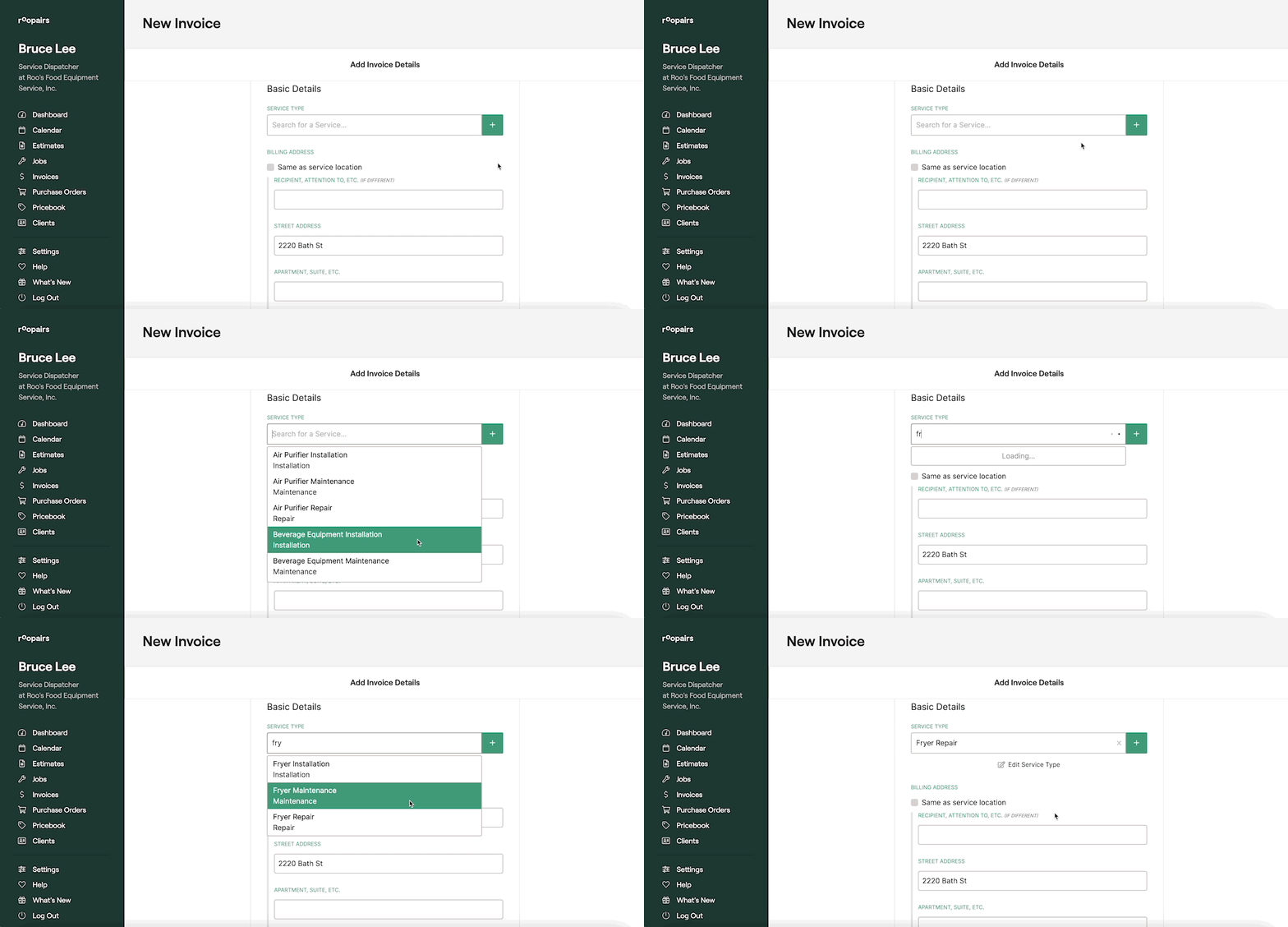
Select your Service Type
You can select the Service Type for this Invoice from the dropdown by either clicking into the dropdown and choosing from the list or by typing in the name of the Service Type for this Invoice.
- If this Invoice will be for a new Service Type that is not already in your system you can click the green
+button to create a new Service Type with the appropriate details. Learn how to create a new Service Type HERE.
Enter in the Billing Address
Once you have selected your Service Type you will want to enter in the Billing Address Details.
- Or, if the Billing Address is the same as the Service Location you can click the box that says
Same as Service Location
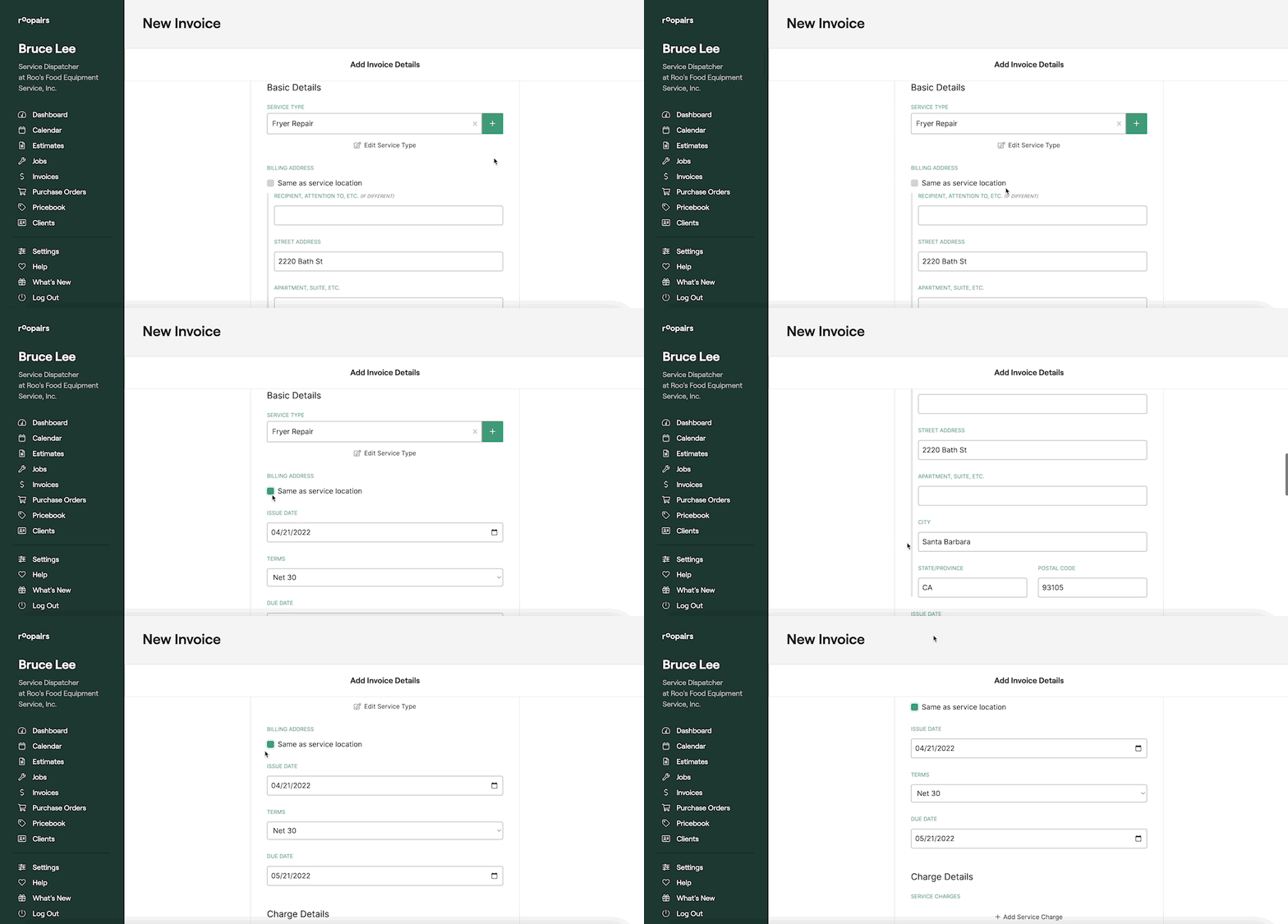
Select your Issue Date, Terms, and Due Date
Once you enter in the Issue Date, Terms, and Due Date you will be able to select your Estimated Service Charges, Parts and Materials, Trip Charges, and Discounts if any of these apply to this Invoice.
Add Service Charge(s)
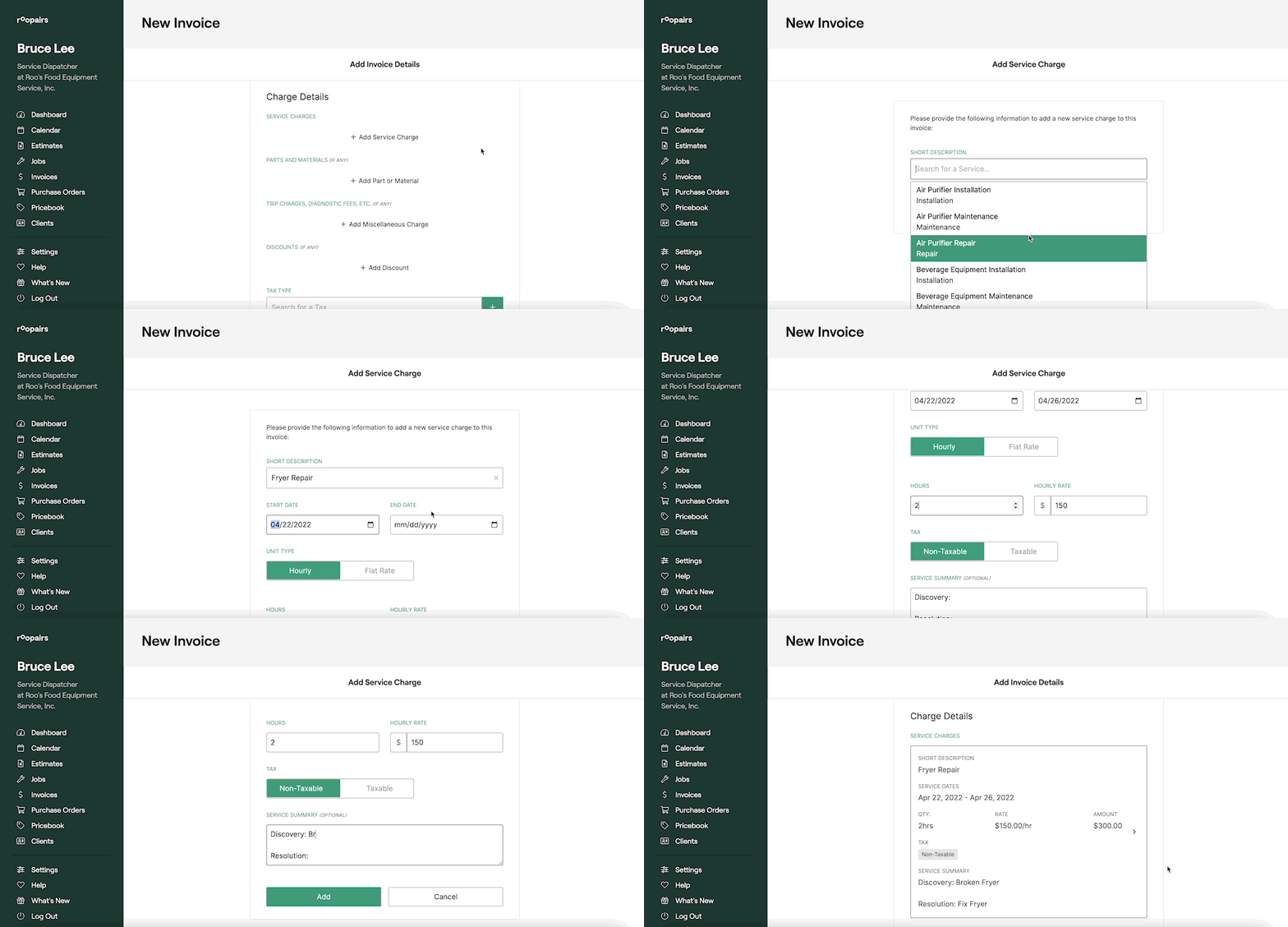
The first thing you will want to do is add your Service Charges by clicking the + Add Service Charge button.
- Select which type of service you are providing
- Select whether this is an Hourly Service Charge or a Flat Rate.
- Select whether this is a
TaxableorNon Taxableservice. - At the very bottom of the page you can choose to enter in a Service Summary if you wish too.
- Review the items of your Service Charge and click the green
Addbutton at the bottom when finished. - If there are additional Service Charges for this Invoice you can now repeat this process to add the additional charges.
Add Parts and Materials
If this Invoice will require any parts you can add them to the Invoice by clicking the + Add Part or Material.
- Select the necessary part from the dropdown or you can search it by name in the dropdown as well.
- Enter in the Quantity and Unit Price of the part.
- Select whether this is a
TaxableorNon Taxableitem. - Enter in any Additional Notes regarding this part in the Detailed Summary section at the bottom.
- Once you have verified these details you can click the green
Addbutton at the bottom to add this part to your Invoice. - If there are additional parts required for this Invoice you can now repeat this process to add those items as well.
Add Miscellaneous Charge(s)
If this Invoice will require any Miscellaneous Charges you can add them to the Invoice by click the + Add Miscellaneous Charge button.
- Select your Miscellaneous Charge from the dropdown or search it by name in the dropdown
- Enter in the Quantity and Unit Charge for this Miscellaneous Charge.
- Select whether this is a
TaxableorNon Taxableitem. - Enter in any Additional Notes regarding this Miscellaneous Charge in the Detailed Summary section at the bottom
- Once you have verified these details you can click the green
Addbutton at the bottom to add this part to your Invoice. - If there are additional Miscellaneous Charges required for this Invoice you can now repeat this process to add those items as well.
Add Discounts
If this Invoice will require any Discounts you can add them to the Invoice by clicking the + Add Discount button.
- Select your Discount from the dropdown or search it by name in the dropdown.
- Enter in the Quantity and Unit Price of this Discount.
- Enter in any Additional Notes regarding this Discount in the Detailed Summary Section at the bottom.
- Once you have verified these details you can click the green
Addbutton at the bottom to add this Discount to your Invoice. - If there are additional Discounts required for this Invoice you can now repeat this process to add those items as well.
- Select your Tax Type for this Invoice via the dropdown or search it by name in the dropdown.

Review and Send Invoice
Review the Invoice to verify you have all the correct details entered in.
- You can choose to preview the invoice to see how it will be displayed to your clients by clicking the
Preview Invoicebutton at the bottom - If you still need additional details for this Invoice before sending it out, you can also save the invoice as a draft and return to it later by clicking
Save Draftat the bottom - If you have reviewed the Invoice and verified it is ready to send, you can click the green
Create and Sendbutton at the bottom of the page